

Hey there! As a supplier of OPS I5 products, I've encountered a bunch of common issues that users often face. In this blog, I'm gonna share some tips on how to troubleshoot these problems.
1. Booting Issues
One of the most frequent headaches with OPS I5 is booting problems. Sometimes, your OPS I5 just won't start up. Here's what you can do.
Check the Power Supply
First off, make sure the power cable is properly plugged in. Sounds simple, but you'd be surprised how often this is the problem. Give it a gentle tug to ensure it’s snug in both the OPS I5 unit and the power socket. If it's a loose connection, that could be halting the boot process.

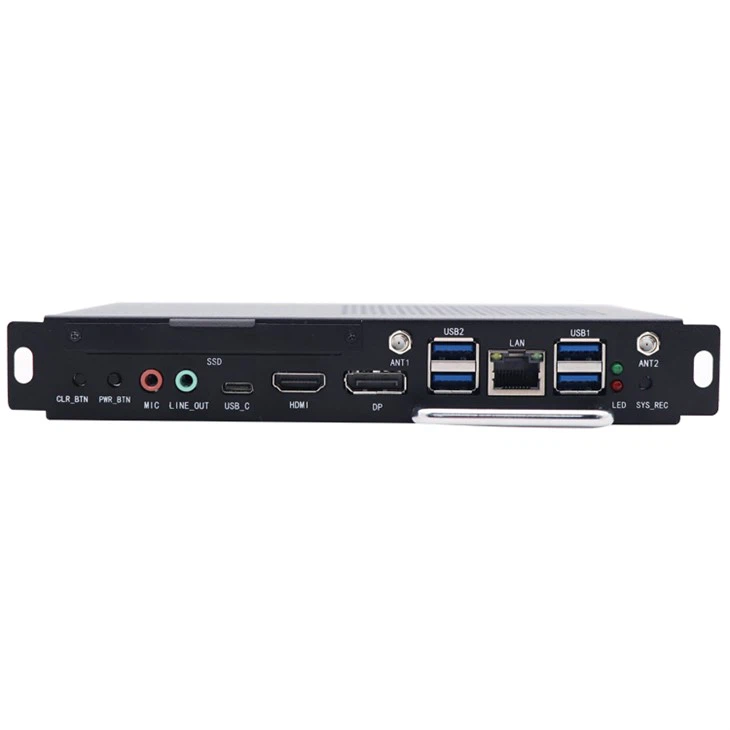
Also, check if the power LED on the OPS I5 is lit. If it's not, it might be a faulty power supply. Try swapping the power cable with another compatible one to see if that solves the issue.
Check for Hardware Conflicts
Sometimes, other hardware components can interfere with the boot process. Disconnect any external devices like USB drives, external hard drives, or printers. Then, try booting the OPS I5 again. If it boots successfully, you know the problem lies with one of those external devices. Try reconnecting them one by one to find the culprit.
2. Display Issues
No picture on your screen? Or maybe the display is flickering or showing odd colors? These are common display - related issues with OPS I5.
Check the Video Connection
Verify that the HDMI, VGA, or other video cables are securely connected to both the OPS I5 and your monitor. A loose cable can cause a poor or no - signal situation. Try wiggling the cables gently while the system is on. If the display changes, it's a sign that you need to re - seat the cable properly.
If possible, try using a different video cable or a different port on your monitor. This can help you determine if the problem is with the cable, the port on the monitor, or the OPS I5 itself.
Update Graphics Drivers
Outdated graphics drivers can also lead to display problems. You can usually update the graphics drivers through Windows Update. Go to Settings > Update & Security > Windows Update and click “Check for updates”. If there are any driver updates available for your graphics card, install them and restart the OPS I5.
3. Performance Issues
Sluggish performance can be a real pain in the OPS I5. Programs taking forever to open? System freezing up? Let's look at some solutions.
Close Unnecessary Programs
Running too many programs simultaneously can eat up a lot of system resources. Press Ctrl + Shift + Esc to open the Task Manager. Look for any programs that are taking up a large amount of CPU, memory, or disk space and end those tasks. Closing background processes like auto - syncing apps or chat clients can free up valuable resources.
Check for Malware
Malware can significantly slow down your OPS I5. Install a trusted antivirus program like Windows Defender or third - party software. Run a full system scan to detect and remove any malicious software lurking in your system.
Upgrade Hardware
If your OPS I5 has been in use for a long time, it might be time to consider upgrading the hardware. Adding more RAM can improve multitasking capabilities, while a solid - state drive (SSD) can boost overall system speed compared to a traditional hard disk drive (HDD).
4. Connectivity Issues
Problems with Wi - Fi, Ethernet, or Bluetooth can make using your OPS I5 a real hassle.
Wi - Fi Connectivity
If you're having trouble connecting to Wi - Fi, first check if other devices can connect to the same Wi - Fi network. If they can, the problem might be with your OPS I5. Try forgetting the Wi - Fi network on your device and then reconnecting. Enter the correct password and see if that does the trick.
You can also try restarting your Wi - Fi router and your OPS I5. Sometimes, a simple restart can fix minor connectivity glitches.
Ethernet Connectivity
For Ethernet issues, make sure the Ethernet cable is properly plugged into both your OPS I5 and the router or switch. Check if the Ethernet port on your device has a blinking light, which indicates activity. If there's no light, try using a different Ethernet cable.
Bluetooth Connectivity
If you're having problems with Bluetooth devices, go to the Bluetooth settings on your OPS I5 and make sure Bluetooth is turned on. Try pairing your device again. Sometimes, resetting the Bluetooth device (turning it off and on) and your OPS I5 can resolve the issue.
5. Software and Compatibility Issues
Some software might not work properly on your OPS I5. This could be due to compatibility issues with the operating system or hardware limitations.
Check Software Compatibility
Before installing any new software, check its system requirements. Make sure your OPS I5 meets the minimum specifications for running the software. If it doesn't, you might need to upgrade your hardware or look for an alternative software.
If the software is already installed and not working, try running it in compatibility mode. Right - click on the software's executable file, select Properties, and then go to the Compatibility tab. Here, you can choose to run the software as if it were on an older version of Windows.
Reinstall or Update Software
If a particular software is causing problems, try uninstalling and then reinstalling it. This can sometimes fix issues related to corrupted installation files. You can also check if there are any updates available for the software. Software developers often release updates to fix bugs and improve compatibility.
At the end of the day, having a reliable OPS I5 is crucial for a smooth computing experience. If you're still facing issues after trying these troubleshooting steps, or if you're looking to purchase OPS I5 units in bulk for your business, feel free to reach out. Our team of experts is always here to assist you with any questions you may have and guide you through the purchasing process. Whether you're interested in Intel OPS Pc or OPS Windows 10 (1744MXM), we've got you covered.
We strive to provide high - quality products and excellent customer service. So, if you think our OPS I5 offerings are a good fit for your needs, don't hesitate to start a conversation about procurement. Let's work together to find the best solutions for your technology requirements.
References
- "Computer Troubleshooting Basics", Various tech blogs and forums.
- "Hardware and Software Compatibility Guides", Manufacturer's official documentation.