

As a supplier of Intel Box PC, I often receive inquiries from customers about how to install a graphics card on their Intel Box PC. In this blog post, I'll provide a comprehensive guide on this topic, exploring the feasibility, steps, and considerations involved in installing a graphics card on an Intel Box PC.
Feasibility of Installing a Graphics Card on Intel Box PC
Before attempting to install a graphics card, it's crucial to determine whether your Intel Box PC can support it. Not all Intel Box PCs are designed to accommodate a dedicated graphics card. Some models, such as the Nuc Box PC and Mini Desktop Box, are compact and may not have the necessary expansion slots or power supply to support a graphics card.
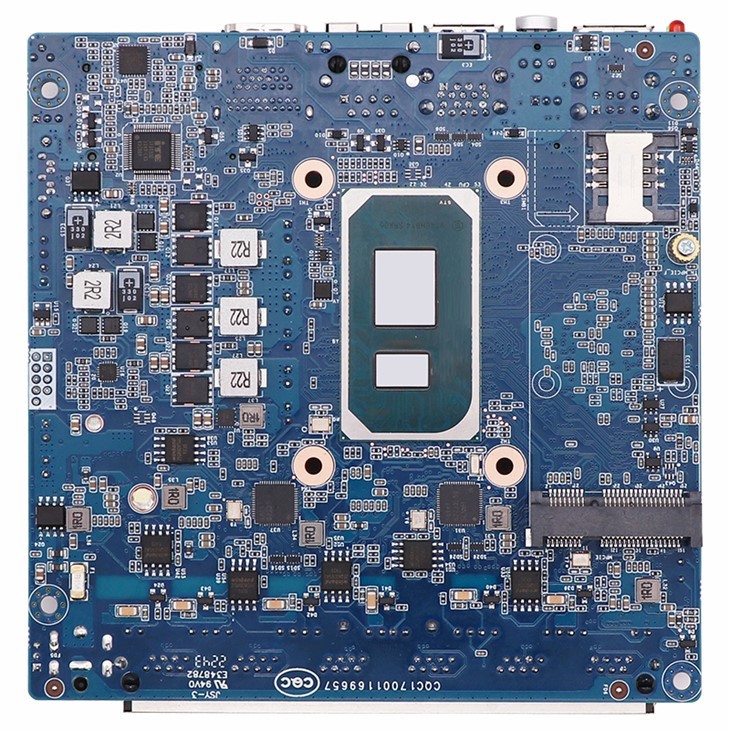
However, certain Intel Box PC models, especially those designed for more demanding applications, do come with expansion capabilities. These models typically have a PCI Express (PCIe) slot, which is the standard interface for graphics cards. If your Intel Box PC has a PCIe slot, it's likely that you can install a graphics card. You can check the product specifications of your Intel Box PC on the official website or in the user manual to confirm the presence of a PCIe slot.
Compatibility Considerations
Even if your Intel Box PC has a PCIe slot, you need to ensure that the graphics card you choose is compatible with your system. Here are some key compatibility factors to consider:
1. PCIe Slot Version
Graphics cards come in different PCIe slot versions, such as PCIe 2.0, PCIe 3.0, and PCIe 4.0. Make sure the graphics card you select is compatible with the PCIe slot version on your Intel Box PC. In most cases, a newer graphics card can work on an older PCIe slot, but it may not perform at its full potential.
2. Physical Dimensions
Graphics cards vary in size, and you need to ensure that the card will fit inside your Intel Box PC. Measure the available space in your PC case and compare it with the dimensions of the graphics card you plan to install. Some graphics cards are long and may require a larger case or additional clearance.
3. Power Requirements
Graphics cards consume a significant amount of power, and your Intel Box PC's power supply needs to be able to provide enough power. Check the power requirements of the graphics card and compare it with the power output of your PC's power supply. If your power supply is not sufficient, you may need to upgrade it.
Steps to Install a Graphics Card on Intel Box PC
If you've determined that your Intel Box PC can support a graphics card and you've selected a compatible card, you can proceed with the installation. Here are the steps to follow:
1. Gather the Necessary Tools
You'll need a few tools to install the graphics card, including a Phillips head screwdriver and an anti-static wrist strap. The anti-static wrist strap helps prevent static electricity from damaging the components.
2. Power Off and Unplug the PC
Before you start working on your PC, make sure it's powered off and unplugged from the electrical outlet. This will prevent any electrical shock or damage to the components.
3. Open the PC Case
Use the Phillips head screwdriver to remove the screws on the side panel of your PC case. Slide the side panel off to expose the internal components.
4. Locate the PCIe Slot
Find the PCIe slot on your motherboard. It's usually a long, thin slot with a locking mechanism at one end.
5. Remove the Slot Cover
There is a metal slot cover on the back of the PC case that corresponds to the PCIe slot. Use the screwdriver to remove the screw holding the slot cover in place and slide the cover off.
6. Install the Graphics Card
Align the graphics card with the PCIe slot and gently insert it into the slot. Apply even pressure until the card is fully seated. You may hear a click when the card is properly inserted. Then, use the screw to secure the graphics card to the PC case.
7. Connect the Power Cables
Most graphics cards require additional power cables to operate. Locate the power connectors on the graphics card and connect them to the appropriate power cables from your PC's power supply. Make sure the connections are secure.
8. Close the PC Case
Slide the side panel back onto the PC case and use the screwdriver to tighten the screws.
9. Power On the PC
Plug the PC back into the electrical outlet and power it on. The PC should automatically detect the new graphics card.
10. Install the Graphics Card Drivers
Once the PC is powered on, you need to install the drivers for the graphics card. You can download the latest drivers from the manufacturer's website. Follow the installation instructions provided by the manufacturer to complete the driver installation.

Post-Installation Checks
After installing the graphics card and its drivers, it's important to perform some checks to ensure that everything is working properly. Here are some things you can do:
1. Check the Display
Connect your monitor to the graphics card using the appropriate cable. Make sure the monitor is set to the correct input source. If the display is working properly, you should see the desktop on your monitor.
2. Run Graphics Benchmark Tests
You can use graphics benchmarking software, such as 3DMark, to test the performance of your graphics card. Run the benchmark tests and compare the results with the expected performance of the graphics card.
3. Monitor the Temperature
Graphics cards can generate a lot of heat, especially when they're under heavy load. Use software, such as HWMonitor, to monitor the temperature of your graphics card. If the temperature is too high, you may need to improve the cooling in your PC.
Conclusion
Installing a graphics card on an Intel Box PC can be a great way to enhance the graphics performance of your system. However, it's important to ensure that your PC can support a graphics card and that the card you choose is compatible with your system. By following the steps outlined in this guide and performing the necessary checks, you can successfully install a graphics card on your Intel Box PC.
If you're interested in purchasing an Intel Box PC or have any questions about graphics card installation, feel free to contact us for a procurement discussion. We're here to help you find the right solution for your needs.
References
- Intel official documentation
- Graphics card manufacturer's user manuals
- PC hardware installation guides