
Hey there! As a supplier of OPS PC modules, I often get asked about how to adjust the display settings on these devices. So, I thought I'd put together this blog post to walk you through the process step by step. Whether you're a newbie or a tech-savvy person, this guide should help you get the most out of your OPS PC module's display.
First things first, let's talk about what an OPS PC module is. For those who aren't familiar, an OPS (Open Pluggable Specification) PC module is a standardized, compact computer that can be easily inserted into compatible displays. It's a great solution for digital signage, interactive kiosks, and other applications where space is limited. We offer a variety of OPS PC modules, like the OPS I5, Intel OPS Pc, and OPS Windows 10, each with its own set of features and capabilities.
Now, let's dive into the display settings. The first step is to access the display settings menu. Usually, you can do this by right - clicking on the desktop and selecting "Display settings" from the context menu. On some systems, you might also find it in the Control Panel under "Appearance and Personalization" or in the Settings app under "System > Display".
Once you're in the display settings menu, you'll see a bunch of options. One of the most important settings is the screen resolution. The screen resolution determines how sharp and clear the images and text on your screen appear. You can adjust the resolution by clicking on the "Resolution" dropdown menu. A higher resolution means more pixels on the screen, which generally results in a sharper image, but it might also make the text and icons smaller. So, you'll need to find a balance that works for you.
Another key setting is the display orientation. If you're using your OPS PC module in a vertical or landscape orientation, you can change it here. Just click on the "Display orientation" dropdown menu and select the orientation you want, like "Portrait" or "Landscape". This is especially useful if you're using your device for digital signage or a specific application that requires a certain orientation.
Color settings are also crucial. You can adjust the color temperature, contrast, and brightness to make the colors on your screen look more vivid and accurate. Some OPS PC modules come with pre - set color profiles, like "Standard", "Movie", or "Game". You can choose the profile that suits your needs, or you can fine - tune the settings manually.
If you're using multiple displays with your OPS PC module, you'll need to configure the multi - display settings. You can set up your displays to work as an extended desktop, where you can move windows and applications between different screens, or as a duplicated desktop, where the same image is shown on all screens. To do this, click on the "Multiple displays" dropdown menu and select the option you want.
Scaling is another setting that can make a big difference. If the text and icons on your screen are too small or too large, you can adjust the scaling. You can choose from options like 100%, 125%, 150%, etc. A higher scaling percentage will make everything on the screen larger, which is great if you have vision problems or if you're using a large - screen display.
Now, let's talk about some troubleshooting tips. If you're having issues with the display, like a blank screen or distorted images, the first thing you should do is check the connections. Make sure the OPS PC module is properly inserted into the display and that all the cables are securely plugged in. You can also try restarting both the OPS PC module and the display.
If the problem persists, it might be a driver issue. You can try updating the graphics drivers for your OPS PC module. You can usually do this through the Device Manager. Just open the Device Manager, find the "Display adapters" section, right - click on your graphics card, and select "Update driver".
In some cases, the display settings might be locked by the system administrator. If you're having trouble accessing or changing the settings, you'll need to contact the administrator for help.
So, there you have it! That's how you can adjust the display settings on an OPS PC module. Whether you're using it for work, entertainment, or digital signage, getting the display settings right can greatly enhance your experience.
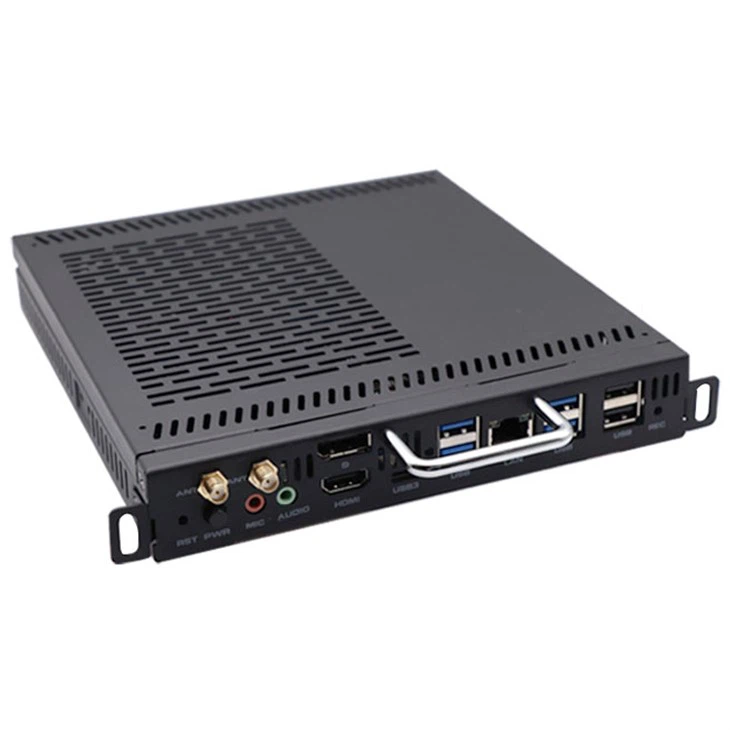
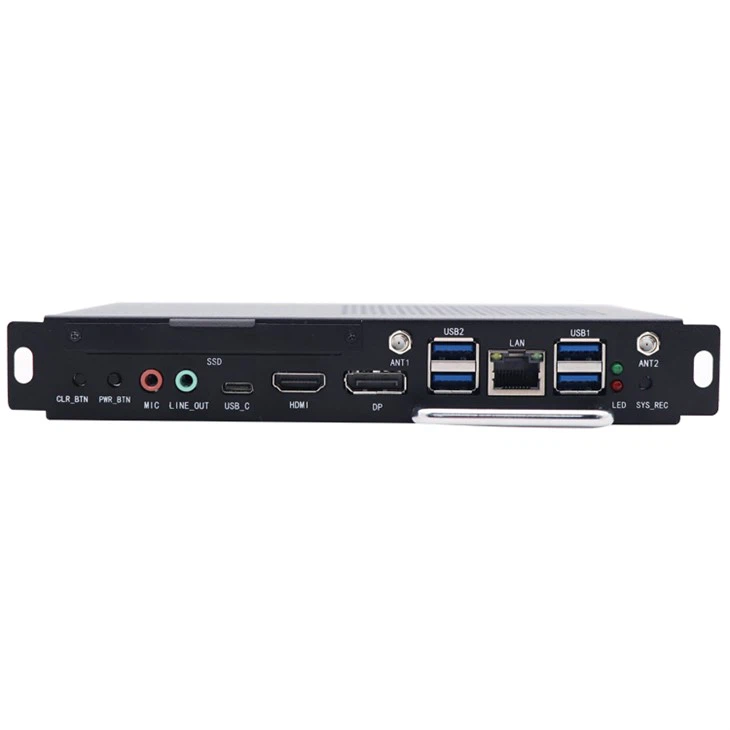
If you're in the market for an OPS PC module or have any questions about our products, feel free to reach out. We're here to help you find the perfect solution for your needs and guide you through the setup process. Whether you're a small business owner looking to set up a digital signage system or a large enterprise in need of multiple OPS PC modules, we've got you covered.
References
- General knowledge about OPS PC modules and display settings from personal experience as a supplier.
- Technical documentation provided by hardware manufacturers for OPS PC modules.